February 2, 2026
AI Image Upscaler Free: How to Enhance Photos Without Paying $20/Month
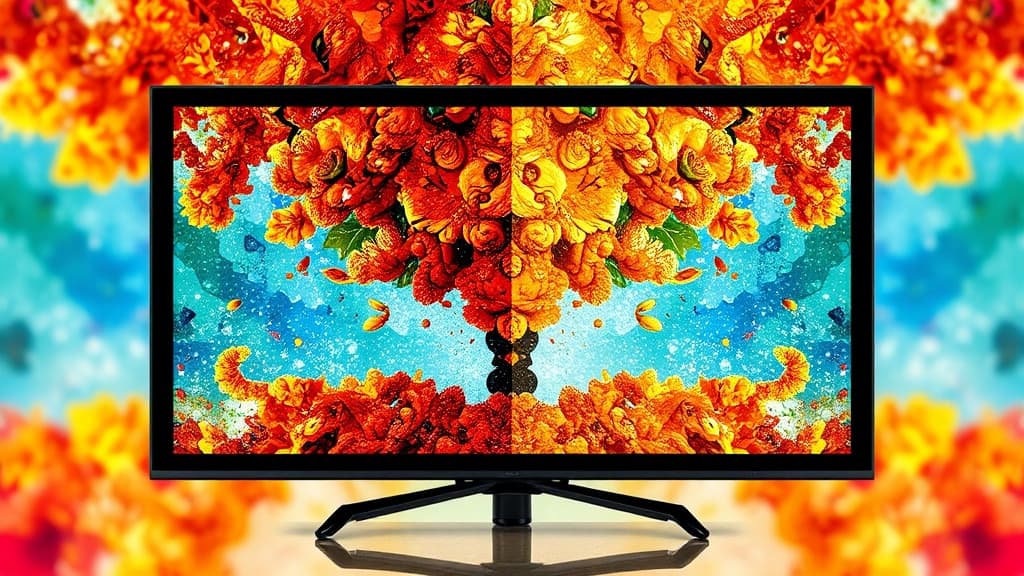
You've got a great image — maybe something you generated with AI, maybe an old photo from 2019 — and it's 512×512. Tiny. Unusable for print. You Google "ai image upscaler free" and every result wants $20/month.
Let's fix that.
What AI Upscaling Actually Does
Traditional upscaling just stretches pixels. AI upscaling is different. It predicts what should be there — adding detail to faces, sharpening text, filling in textures that the original resolution couldn't capture.
The results in 2026 are genuinely impressive. A 512×512 image can become a clean 2048×2048 with details that weren't in the original. Not magic. Not perfect. But good enough for most use cases.
The Free Options (And Their Catches)
Upscayl is the go-to open-source option. It runs locally on your machine, which means no upload limits and no watermarks. The catch? You need a decent GPU. On a MacBook Air, expect 30-45 seconds per image. On a gaming PC, maybe 5 seconds. Quality is solid for photos but can struggle with AI-generated art that has unusual textures.
Bigjpg gives you free upscales up to 3000×3000 pixels. The queue times during peak hours can hit 2-3 minutes, and you're limited to 20 images per month on the free tier. Fine for occasional use. Frustrating if you're batch-processing.
Real-ESRGAN (the model behind many upscalers) can be run locally via command line. Completely free, no limits. But you need to be comfortable with Python environments and model downloads. Not exactly beginner-friendly.
The Problem With "Free"
Here's what nobody tells you about free upscalers: most of them use one model with one setting. You get whatever you get.
But different images need different approaches. A photograph of a person needs face-aware enhancement. A piece of digital art needs texture preservation. A logo needs sharp edges, not the soft "painterly" effect that looks great on landscapes but terrible on text.
This is where quality modes matter.
How Myjourney Handles Upscaling
When you generate images on Myjourney, you can choose between quality modes that affect both generation and upscaling:
- Standard — Fast, good for social media and web use. Most images cost around $0.03.
- HD — Higher detail, better for printing. Takes a bit longer.
- Ultra — Maximum resolution with enhanced detail pass. Best for large-format prints or when you need every pixel to count.
The difference between Standard and Ultra is genuinely visible at 100% zoom. Standard sometimes softens fine details like hair strands or fabric texture. Ultra preserves them. Whether that matters depends entirely on what you're doing with the image.
And because Myjourney uses pay-per-use pricing, you're not paying $20/month for the 3 images you actually need upscaled. You pay for what you use. Period.
When Free Upscalers Are Enough
Let's be honest about when free tools work perfectly fine:
Social media posts. Instagram compresses everything anyway. A free 2x upscale from Upscayl is more than enough for a feed post. Don't overthink it.
Web thumbnails. If the final display size is 400×400 on a blog, even basic upscaling looks fine. You're solving a technical requirement, not chasing perfection.
Quick mockups. Showing a concept to a client? Free upscaling gets you there. Save the premium quality for the final deliverable.
When You Need Something Better
Print projects. Anything going on paper — posters, business cards, merchandise — benefits from better upscaling. The difference between a $0 upscale and a $0.03 one shows up immediately at 300 DPI.
Professional headshots. AI-generated headshots need careful upscaling. Free tools sometimes introduce artifacts around eyes and teeth that look uncanny. Quality-aware upscaling handles faces much better.
Portfolio work. If someone's judging your work at full resolution, every pixel matters. This is not the place to cheap out.
A Practical Workflow
Here's what actually works for most people:
- Generate your image at the highest quality you can afford
- If it needs upscaling, try a free tool first (Upscayl is my recommendation)
- Check the result at 100% zoom, especially around faces, text, and fine details
- If the free result has artifacts or softness, re-generate with a higher quality mode
The last step is key. Sometimes it's cheaper and faster to just generate a better image than to upscale a mediocre one.
The Honest Take
Free AI upscalers have gotten remarkably good. For casual use, they're genuinely sufficient. Upscayl in particular has improved dramatically over the past year.
But if you're generating AI images regularly — for work, for a business, for a serious creative project — the quality difference between free upscaling and purpose-built generation at higher quality modes is noticeable. Not dramatic. Noticeable.
Myjourney's approach of letting you choose your quality level per image means you're not overpaying for casual stuff or underpaying for important work. Generate a quick concept at Standard for $0.03. Generate the final version at Ultra when it matters.
No subscription. No credits expiring at the end of the month. Just pay for what you actually make.
That's a better deal than "free" with asterisks. See real examples in the community gallery.
Ready to try it yourself?
Create AI images and videos with Myjourney. 100 free credits, no credit card needed.
Related posts
Liked this post?
Get notified when we publish new guides, tips, and comparisons. No spam.