February 2, 2026
AI LinkedIn Banner Generator: Make a Custom Header in 2 Minutes
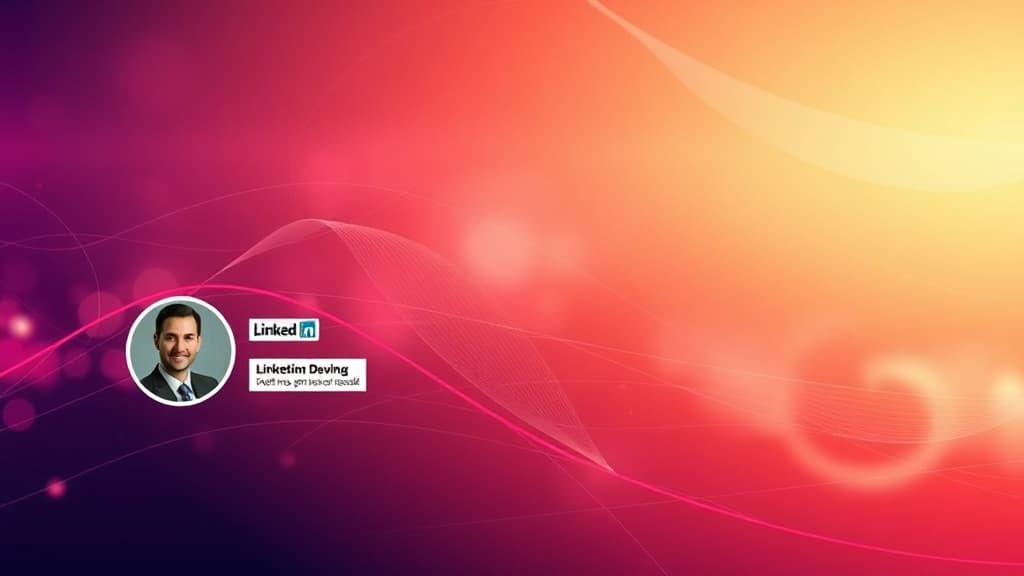
Your LinkedIn banner takes up more screen real estate than your profile photo, headline, and about section combined. It's the first thing people see. And most profiles either have the default blue gradient or a random stock photo of a city skyline.
A custom banner signals that you take your professional presence seriously. The problem is that making one has always been annoying — fiddling with Canva templates, trying to find a stock photo that doesn't look like everyone else's, or paying a designer $50-200 for something you'll change in six months.
AI image generators fix this. You describe what you want, generate it, crop it, and upload. The whole process takes about 2 minutes.
LinkedIn Banner Specs You Need to Know
Before you generate anything, here are the numbers:
- Recommended size: 1584 × 396 pixels
- Aspect ratio: 4:1
- File format: PNG or JPG
- Max file size: 8MB
- Safe zone: Keep important elements away from the left side (your profile photo overlaps there) and the edges (mobile crops differently than desktop)
That 4:1 ratio is the key detail. Most AI generators default to 1:1 or 16:9. You'll need to either generate at a wide ratio or generate larger and crop.
Step-by-Step: Generate Your LinkedIn Banner
Step 1: Pick Your Style
Decide what your banner should communicate. A few directions that work well:
- Abstract/gradient — Safe, clean, professional. Works for anyone.
- Industry-themed — Subtle imagery related to your field (code for developers, cityscapes for real estate, lab equipment for researchers).
- Personal brand — Colors and patterns that match your website or portfolio.
- Texture/minimal — Dark marble, brushed metal, paper texture. Simple and elevated.
Step 2: Write Your Prompt
Open the Imagine tool and use one of these templates:
Abstract Professional:
Abstract professional LinkedIn banner, wide panoramic format,
smooth gradient from deep navy to teal, subtle geometric patterns,
clean and modern, corporate professional aesthetic, soft lighting,
minimal and elegant
Tech/Developer:
Wide panoramic banner, dark background with subtle code elements,
soft blue and purple accent lighting, abstract data visualization,
futuristic but clean, professional tech aesthetic, no text
Creative/Design:
Wide panoramic LinkedIn banner, bold abstract brushstrokes,
warm coral and cream palette, artistic professional header,
textured paint effect, gallery-quality composition, minimal
Consultant/Executive:
Professional LinkedIn banner, aerial city skyline at golden hour,
warm tones, soft focus, wide panoramic format, premium corporate
photography style, cinematic lighting
Important: Add "no text, no words, no letters" to your prompt unless you specifically want text. AI-generated text usually looks garbled and unprofessional.
Step 3: Generate and Select
Generate 4 variations. Look for:
- Clean composition with no weird artifacts
- Colors that complement your profile photo
- No important details on the far left (your profile picture will cover that area)
- A design that reads well at small sizes (mobile)
Step 4: Crop to 1584 × 396
If your generated image isn't already 4:1, you'll need to crop. Any free tool works — even Preview on Mac or Photos on Windows. Just set the crop to 1584 × 396 and position it to grab the best part of the image.
Pro tip: generate at a wider aspect ratio (like 2:1 or 3:1) so you have more room to find a good crop within the image.
Step 5: Upload to LinkedIn
Go to your LinkedIn profile → click the pencil icon on your banner → upload. Preview it on both desktop and mobile before you save. Mobile crops more aggressively from the sides.
Prompt Tips That Make a Difference
Use "panoramic" and "wide format" in every prompt. This nudges the AI toward compositions that work in wide crop formats, even if the raw output isn't 4:1.
Specify "no text." Seriously. AI text on a LinkedIn banner looks terrible. If you want text on your banner, generate the background with AI and add text in a separate tool.
Name specific colors. "Navy and gold" produces better results than "professional colors." Match your brand palette if you have one.
Reference real photography styles. "Shot on medium format film" or "editorial magazine cover style" can push the aesthetic in interesting directions.
AI vs Canva vs Hiring a Designer
| Option | Cost | Time | Uniqueness |
|---|---|---|---|
| AI generator | $0.03-$0.10 | 2-5 minutes | High — unique every time |
| Canva free | $0 | 10-20 minutes | Low — same templates as everyone |
| Canva Pro | $12.99/mo | 10-20 minutes | Medium — better templates, still templated |
| Freelance designer | $50-200 | 3-7 days | High — custom work |
Canva is fine if you want a quick template. But if you've scrolled LinkedIn, you've seen the same Canva banner templates dozens of times. The teal gradient with the white text. The abstract blob pattern. They're recognizable at this point.
Hiring a designer gets you something truly custom, but the turnaround is days, not minutes. And if you want to change it seasonally or match a new role, that's another $50-200 each time.
AI sits in the sweet spot: fully custom output, nearly instant, and essentially free.
Common Mistakes to Avoid
Too busy. Your banner is a background element. If it's louder than your headline and profile photo, it's distracting. Keep it clean.
Putting important stuff on the left. Your circular profile photo overlaps the bottom-left of the banner. Anything there gets hidden.
Using AI-generated text. The letters will be slightly wrong and it'll look worse than no text at all. Generate the image, add text separately if needed.
Ignoring mobile. Check how it looks on the LinkedIn mobile app. The crop is tighter and different elements may get cut off.
Go Make One
It takes two minutes. Open the Imagine tool, paste one of the prompts above, swap in your preferred colors and style, and generate. If you want inspiration first, browse the Explore gallery to see what other people are creating.
Your LinkedIn profile is doing work for you 24/7. A custom banner is the easiest upgrade you can make — and now it costs less than a cup of coffee.
Ready to try it yourself?
Create AI images and videos with Myjourney. 100 free credits, no credit card needed.
Related posts

How to Use AI Image Generation: A Beginner's Complete Guide (2026)
Step-by-step guide to using AI image generation tools in 2026. From your first prompt to advanced techniques — everything you need to start creating AI art today.
Liked this post?
Get notified when we publish new guides, tips, and comparisons. No spam.