February 4, 2026
AI YouTube Thumbnail Maker: Generate Click-Worthy Thumbnails for Free
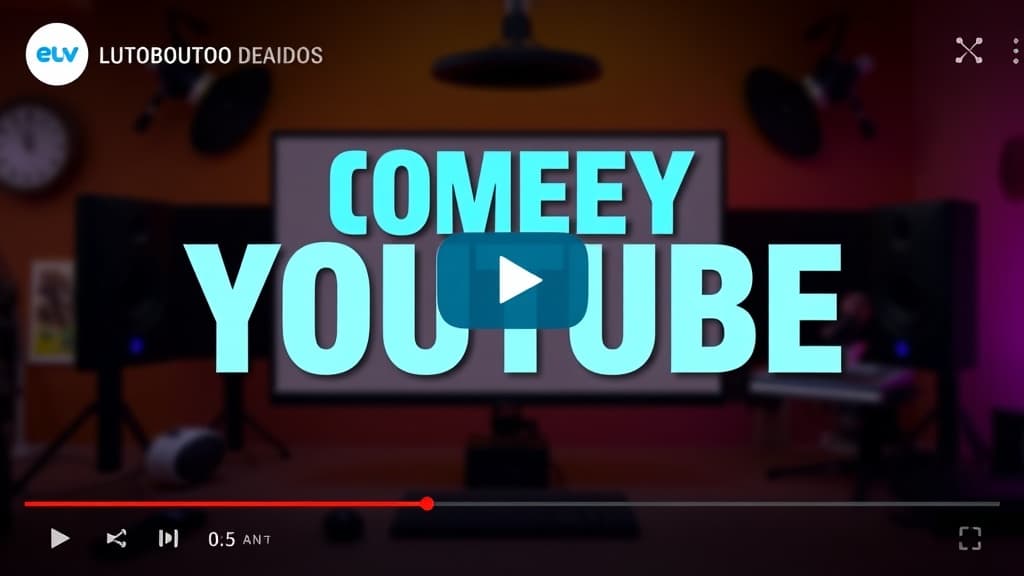
YouTube thumbnails are a weird art form. You've got about 1.5 seconds to convince someone to click your video instead of the 20 others on their screen. The thumbnail does most of that work — more than the title, according to YouTube's own data.
The problem: making good thumbnails is time-consuming. You need the right image, the right composition, bold colors, and usually some text overlay. Most creators either spend 30-60 minutes per thumbnail in Photoshop, pay $10-30 on Fiverr for each one, or settle for Canva templates that look like everyone else's.
AI thumbnail generation changes the equation. You describe the visual you want, generate it in seconds, and add text on top. Total cost: $0.03-$0.10 per image.
What Makes a Thumbnail Actually Work
Before we get into prompts, let's talk about what makes thumbnails perform. This matters because it shapes how you prompt.
High contrast. Thumbnails are small. They need to pop at 320×180 pixels (the size they display in most feeds). Low-contrast, muted images disappear.
Faces with emotion. Thumbnails with expressive human faces consistently outperform those without. Shock, excitement, confusion — big emotions drive clicks.
Bright, saturated colors. YouTube's interface is white and gray. Thumbnails that use bold reds, yellows, and blues stand out from the page.
Simple composition. One main subject, one focal point. Cluttered thumbnails are confusing at thumbnail size.
Visual curiosity gap. Show something that makes the viewer think "what's going on here?" without giving away the full answer.
YouTube Thumbnail Specs
- Resolution: 1280 × 720 pixels (minimum)
- Aspect ratio: 16:9
- File format: JPG, PNG, or GIF
- Max file size: 2MB
- What matters most: Looks good at 320×180 (how it actually displays)
Prompt Templates That Produce Good Thumbnails
Open the Imagine tool and try these. Swap the bracketed sections for your specific content.
The Reaction Face
Close-up portrait of a [person description] with an expression of
extreme [shock/excitement/disbelief], bright studio lighting,
vibrant saturated colors, [color] background, YouTube thumbnail style,
high contrast, bold and eye-catching, 16:9 aspect ratio
This is the most common high-performing thumbnail style on YouTube. It works because human faces grab attention, and extreme expressions create curiosity.
The Before/After Split
Split screen composition, left side showing [before state] in
muted desaturated tones, right side showing [after state] in
vivid bright colors, clear visual contrast, dramatic transformation,
YouTube thumbnail style, 16:9
Perfect for tutorials, transformations, reviews, and comparison videos. The visual contrast tells a story instantly.
The Bold Object Hero
[Object/subject] centered on a [bright color] background,
dramatic studio lighting with rim light, hyper-detailed,
commercial photography style, high saturation, clean composition,
YouTube thumbnail style, 16:9
Works for tech reviews, unboxings, product videos, cooking channels. The object is the star — make it look incredible.
The Dramatic Scene
Cinematic wide shot of [dramatic scene description], golden hour
lighting, high contrast, vivid colors, action movie poster style,
epic composition, YouTube thumbnail aesthetic, 16:9
Good for vlogs, travel content, storytelling videos. Creates a "wow, what happened?" reaction.
The Minimal/Clean Style
Clean minimal composition, large bold [icon/symbol] on a
[gradient background], modern flat design, bright accent colors,
simple and striking, YouTube thumbnail style, 16:9
Works for educational content, explainers, and channels with a polished brand aesthetic. MrBeast's team uses variations of this approach.
The Workflow: From Prompt to Upload
- Pick a thumbnail style from above that matches your video content.
- Generate 4 variations in Imagine. Cost: about $0.12-$0.40 for the batch.
- Pick the strongest image. Look at it at thumbnail size (shrink your browser window) — does it still read clearly?
- Add text overlay. This is the one step you should do outside AI. Use Canva (free), Figma, or Photoshop to add 3-5 words in a thick, bold font. White text with a black outline is the YouTube standard for a reason.
- Upload to YouTube as your custom thumbnail.
Total time: 5-10 minutes. Total cost: under $0.50 including multiple generations.
Styles That Get Clicks (Based on What's Working)
After looking at thousands of high-performing thumbnails across different niches, a few patterns show up consistently:
Tech channels: Bold product shots on solid color backgrounds. Bright green, red, or yellow. Big text with the key spec or claim. Think MKBHD's style.
Finance/business: Person pointing at a chart, screen, or number. Expression of surprise or intensity. Red and green color accents (money associations).
Gaming: Dynamic action scenes, glowing effects, character close-ups. High saturation, almost neon colors. Dark backgrounds with bright focal points.
Educational: Clean backgrounds, simple icons or diagrams, bold text. Blue and white palettes. The "I'm going to explain this clearly" look.
Cooking: Overhead shot of finished dish, steam effects, warm lighting. Rich, saturated food colors. Makes you hungry at thumbnail size.
AI can nail all of these styles. The key is being specific in your prompt about the exact mood and composition you want.
Cost Comparison
Let's say you publish 4 videos per week and need a thumbnail for each. That's about 200 thumbnails per year.
Fiverr designer:
- $10-30 per thumbnail
- 200 thumbnails = $2,000-$6,000/year
- Turnaround: 1-3 days each
Canva Pro:
- $12.99/month ($156/year)
- Unlimited thumbnails from templates
- But: templates are shared by millions of creators. Your thumbnails look like everyone else's.
AI generation:
- $0.03-$0.10 per image
- Generate 4 options per thumbnail: $0.12-$0.40
- 200 thumbnails = $24-$80/year
- Turnaround: instant
Photoshop/manual:
- Software cost: $22.99/month ($276/year)
- Time: 30-60 minutes per thumbnail
- 200 thumbnails = 100-200 hours/year of your time
The math is pretty clear. Even if you factor in the 5-10 minutes of prompt iteration and text overlay, AI generation saves both money and time compared to every alternative.
Tips for Better AI Thumbnails
Always check at small size. Generate your image, then view it at 320×180. If you can't tell what's happening, the composition isn't working.
Don't put text in the AI prompt. AI-generated text is almost always slightly off — wrong letters, weird spacing. Generate the image clean, add text separately.
Use complementary colors to YouTube's UI. YouTube's interface is mostly white and dark gray. Red, yellow, and bright blue thumbnails pop against it. Muted earth tones get lost.
Generate more than you need. At $0.03-$0.10 per image, there's no reason to settle. Generate 8-12 options and pick the best one.
Study your niche. Before generating, look at the top 10 performing videos in your category. What do their thumbnails have in common? Prompt for those specific elements.
Start Making Thumbnails
Your next video deserves a thumbnail that actually gets clicked. Open the Imagine tool, grab one of the prompt templates above, and generate a few options. Browse the Explore gallery if you want to see more styles and find inspiration.
At $0.03 per image, the only cost is the five minutes it takes to find the right prompt. Your click-through rate will thank you.
Ready to try it yourself?
Create AI images and videos with Myjourney. 100 free credits, no credit card needed.
Related posts


How to Use AI Image Generation: A Beginner's Complete Guide (2026)
Step-by-step guide to using AI image generation tools in 2026. From your first prompt to advanced techniques — everything you need to start creating AI art today.
Liked this post?
Get notified when we publish new guides, tips, and comparisons. No spam.