January 30, 2026
AI Image Generator for Social Media in 2026: Sizes, Templates, and Workflow
A practical guide to creating social media graphics with AI image generators, including exact sizes for Instagram, TikTok, and Twitter, plus a repeatable workflow in Myjourney.
AI Image Generator for Social Media in 2026: Sizes, Templates, and Workflow
Social media teams are using AI image generators to keep up with content schedules. The problem is not creating images, it is creating the right images for each platform. If you are looking for an AI image generator for social media, this guide gives you a repeatable system and exact sizes for Instagram, TikTok, and Twitter.
We will use Myjourney because it is simple, fast, and easy to iterate. You can see real prompts in the Explore gallery and check current credit costs on the pricing page. For beginners, also read the how to generate AI images from text guide.
Why social media needs different image sizes
Each platform crops and compresses content differently. If you use the same 1:1 image everywhere, you will lose screen space and engagement. Picking the right aspect ratio is a low effort way to improve performance.
Here are the current recommended sizes in 2026.
Instagram sizes
| Format | Recommended size | Aspect ratio | Notes |
|---|---|---|---|
| Feed post | 1080 x 1350 | 4:5 | Tall posts show more on mobile |
| Square post | 1080 x 1080 | 1:1 | Safe, classic format |
| Story | 1080 x 1920 | 9:16 | Full screen vertical |
| Reel cover | 1080 x 1920 | 9:16 | Keep text inside safe area |
TikTok sizes
| Format | Recommended size | Aspect ratio | Notes |
|---|---|---|---|
| Video cover | 1080 x 1920 | 9:16 | Works for thumbnails |
| In feed image | 1080 x 1920 | 9:16 | Most content is vertical |
Twitter and X sizes
| Format | Recommended size | Aspect ratio | Notes |
|---|---|---|---|
| Single image | 1600 x 900 | 16:9 | Strong for cards |
| Header | 1500 x 500 | 3:1 | Design wide and simple |
If you want a quick rule, use 4:5 for Instagram feed, 9:16 for Stories or TikTok, and 16:9 for Twitter or blog headers.
A simple workflow for social graphics in Myjourney
The goal is to create a small set of reusable visuals that are easy to adapt. Here is a workflow that works for most teams.
Step 1: Pick a content theme
Example themes:
- A weekly product tip
- A monthly customer story
- A quote or stat card
- A feature highlight
The theme helps you keep your design consistent. AI should generate the visuals, not decide the idea.
Step 2: Write a base prompt
Your base prompt should be simple and repeatable. Here is a good template:
[subject], [style], [color palette], [composition], social media graphic
Example:
a modern workspace with a laptop and notebook, minimal style, warm neutral palette, top down composition, social media graphic
You can reuse this base prompt for each week and change one detail, like a product color or an accessory.
Step 3: Generate in the correct aspect ratio
Choose the platform first, then generate images with the correct aspect ratio. This avoids cropping later.
- Instagram feed - 4:5
- TikTok and Stories - 9:16
- Twitter - 16:9
Step 4: Pick the cleanest variation
AI outputs a grid of options. Choose the image with the cleanest background and the clearest space for text. This is critical for social graphics. You want to place captions or brand elements without clutter.
Step 5: Add text in your design tool
Myjourney does not add perfect typography. It is better to generate the image without text and add typography in Figma, Canva, or your editor. This gives you full control and avoids text artifacts.
Step 6: Export the right size
Export exactly at the platform size. Do not rely on automatic scaling inside the app, as it can blur text or crop details.
Example prompt sets for social posts
Below are three prompt sets you can reuse. Each set includes a base prompt and small variations.
1. Product tip series
Base prompt:
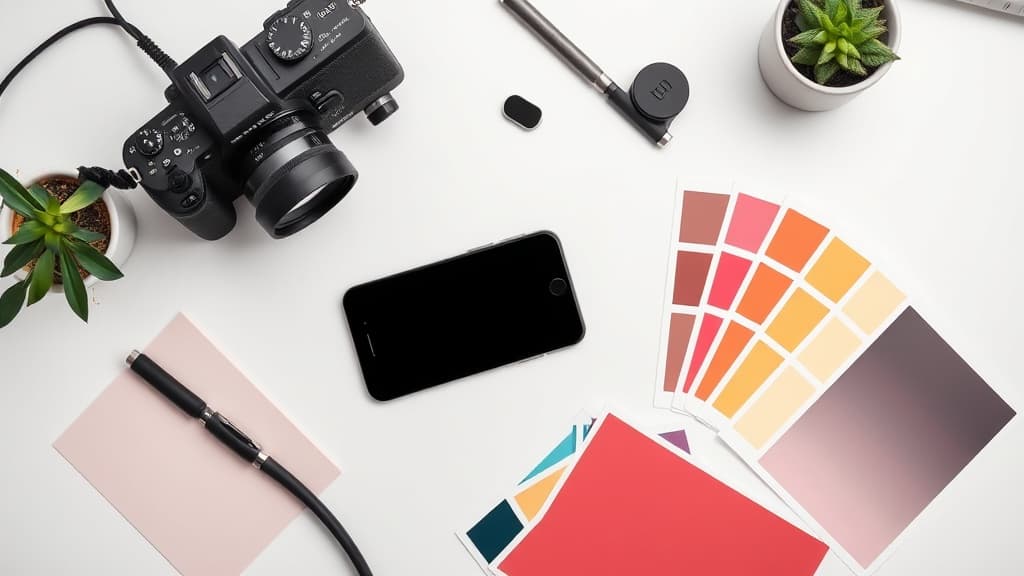
a simple desk scene with a notebook and a pen, soft daylight, minimal style, neutral palette, top down, social media graphic
Variations:
- Add a coffee mug
- Change the pen color
- Switch the background material from wood to marble
2. Quote card series
Base prompt:
a clean paper texture background with subtle shadows, minimal style, warm beige palette, centered composition, social media graphic
This gives you a clean background for text overlays.
3. Feature highlight series
Base prompt:
a close up of a smartphone screen on a desk, soft studio lighting, modern tech style, blue accents, social media graphic
Use this for product features, app updates, or announcements.
A comparison of AI tools for social graphics
There are many tools for social content, but they vary a lot in workflow. Here is a quick comparison focused on social media needs.
| Tool | Best for social use | Pros | Cons |
|---|---|---|---|
| Myjourney | Fast iteration | Clean grid, easy reuse, multiple aspect ratios | No built in text editor |
| Canva AI | Template based design | Great for text overlays | Less control on image style |
| Midjourney | Artistic visuals | Strong style control | Discord based workflow |
| DALL-E | Simple prompts | Easy for quick ideas | Inconsistent composition |
If you want a straight path from prompt to social graphic, Myjourney plus a simple text editor is a strong setup.
Practical tips for better social images
Use negative space on purpose
Social graphics often need text. Leave blank areas in the image by describing the composition. Example:
left aligned subject with empty space on the right, clean background
Keep color palettes tight
A focused palette helps brand consistency. Include a palette in the prompt:
muted blue and warm gray palette
Avoid busy backgrounds
Busy backgrounds make text hard to read. Use phrases like:
- minimal background
- soft gradients
- simple studio backdrop
Use the same prompt structure every week
Consistency matters more than novelty. Reuse prompts and adjust only a few details.
A week of content, planned with AI
Here is a simple weekly plan for a startup account:
| Day | Content type | Image prompt idea |
|---|---|---|
| Monday | Product tip | Clean desk scene, neutral palette |
| Wednesday | Customer quote | Paper texture background, soft shadows |
| Friday | Feature highlight | Smartphone close up, blue accents |
Generate each image in the correct aspect ratio, then add text in your design tool. The whole batch can be created in under an hour.
Myjourney settings that work well for social media
- Mode: Draft for fast exploration, standard for final posts
- Aspect ratio: Match the platform
- Number of images: 4 for variety, 2 if you already have a strong prompt
Start in draft mode so you can iterate quickly. Once you get a clean image, rerun the same prompt in standard mode for better detail.
Common mistakes to avoid
Mistake 1: Using one size for everything
You will lose screen space. Generate for each platform.
Mistake 2: Letting AI generate text
AI text is often distorted. Use a design tool for final typography.
Mistake 3: Not planning a series
Single images are fine, but consistent series perform better. Pick a template and reuse it.
Mistake 4: Overloading the prompt
Social images should be clear and simple. Use short prompts with one subject and one style.
Link your social workflow with other Myjourney tools
If you are building a bigger content pipeline, check these guides:
These posts cover specialized use cases and can help you build a cohesive content library.
FAQ: AI image generator for social media
Which AI image generator is best for social media posts?
Choose a tool that makes iteration fast and lets you pick the right aspect ratio. Myjourney is strong here because you can generate a grid, reuse prompts, and switch aspect ratios easily.
What is the best size for Instagram posts in 2026?
The most effective size is 1080 x 1350, which is a 4:5 ratio. It fills more space in the feed than a square.
Can I use AI images for brand content?
Yes, as long as you follow the tool's terms and any local laws. If you need deeper guidance, see commercial use of AI images.
How do I keep my social graphics consistent?
Use a fixed prompt structure, a limited color palette, and a repeated composition. Save your best prompt and reuse it.
Should I generate text inside the AI image?
It is better to add text in a design tool. This avoids distorted letters and gives you full control.
How many images should I generate per post?
Start with a grid of four. Pick the cleanest result, then rerun the same prompt in standard mode if needed.
Ready to try it yourself?
Create AI images and videos with Myjourney. 100 free credits, no credit card needed.
Related posts
From Prompt to Palette: A Color-First Guide
A practical way to steer mood and color without overstuffing your prompt.
Liked this post?
Get notified when we publish new guides, tips, and comparisons. No spam.